Build Log: Windows Server ISP Gateway
This project simulates the deployment of a managed ISP node. The goal was to configure a Windows Server 2022 instance to act as a router and DHCP authority, simulating how an Internet Service Provider manages traffic and assigns IP addresses to customers.
1. The Setup (Azure Virtualization)
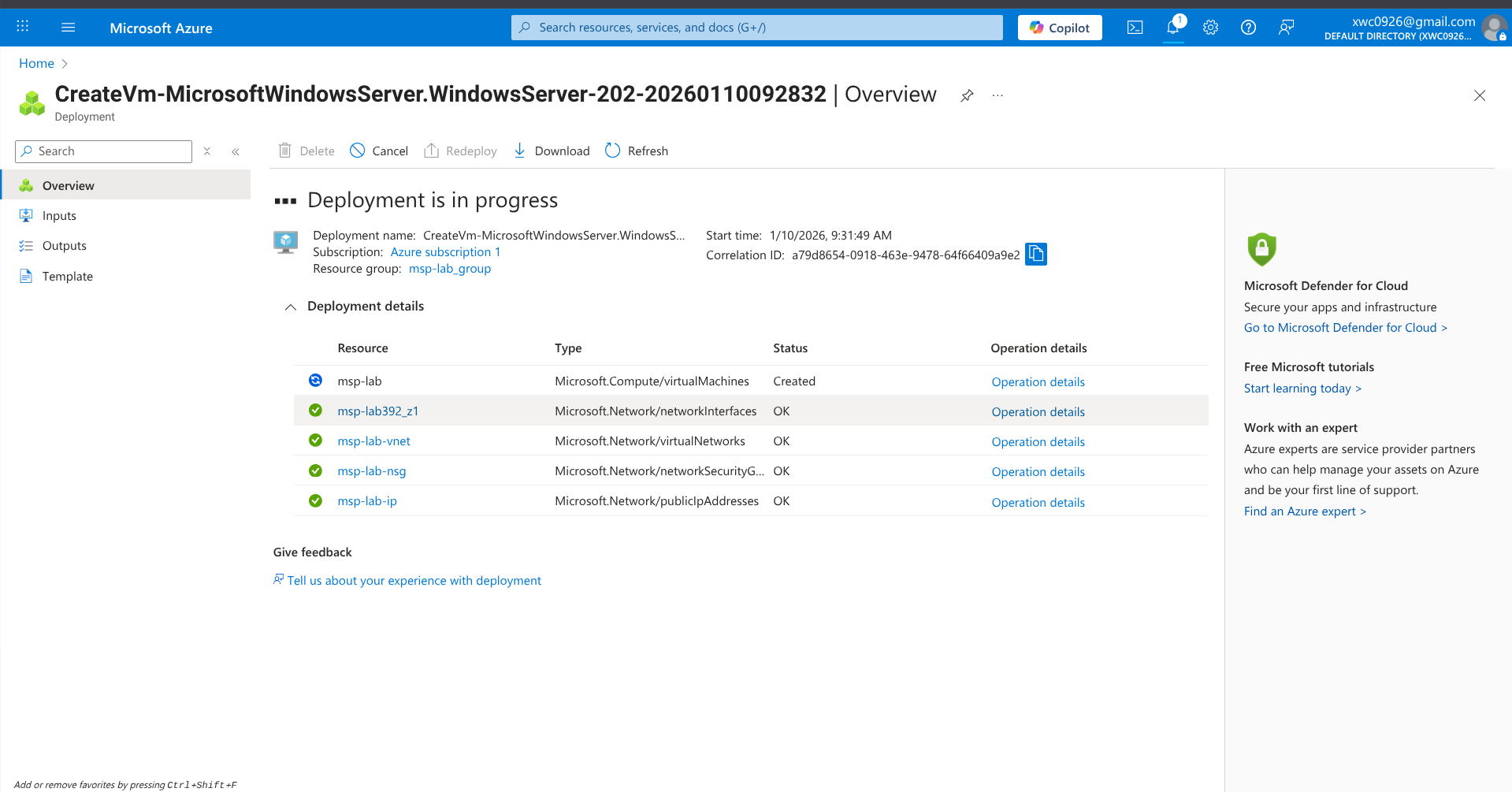
I utilized Microsoft Azure to host a virtual machine acting as our server/router to simulate traffic. This cloud-based approach was chosen to bypass local hardware constraints (Lenovo Chromebook 14 Plus) and to simulate a realistic remote management scenario where the physical server is located in a datacenter rather than on-premise.
2. Enabling Router Features
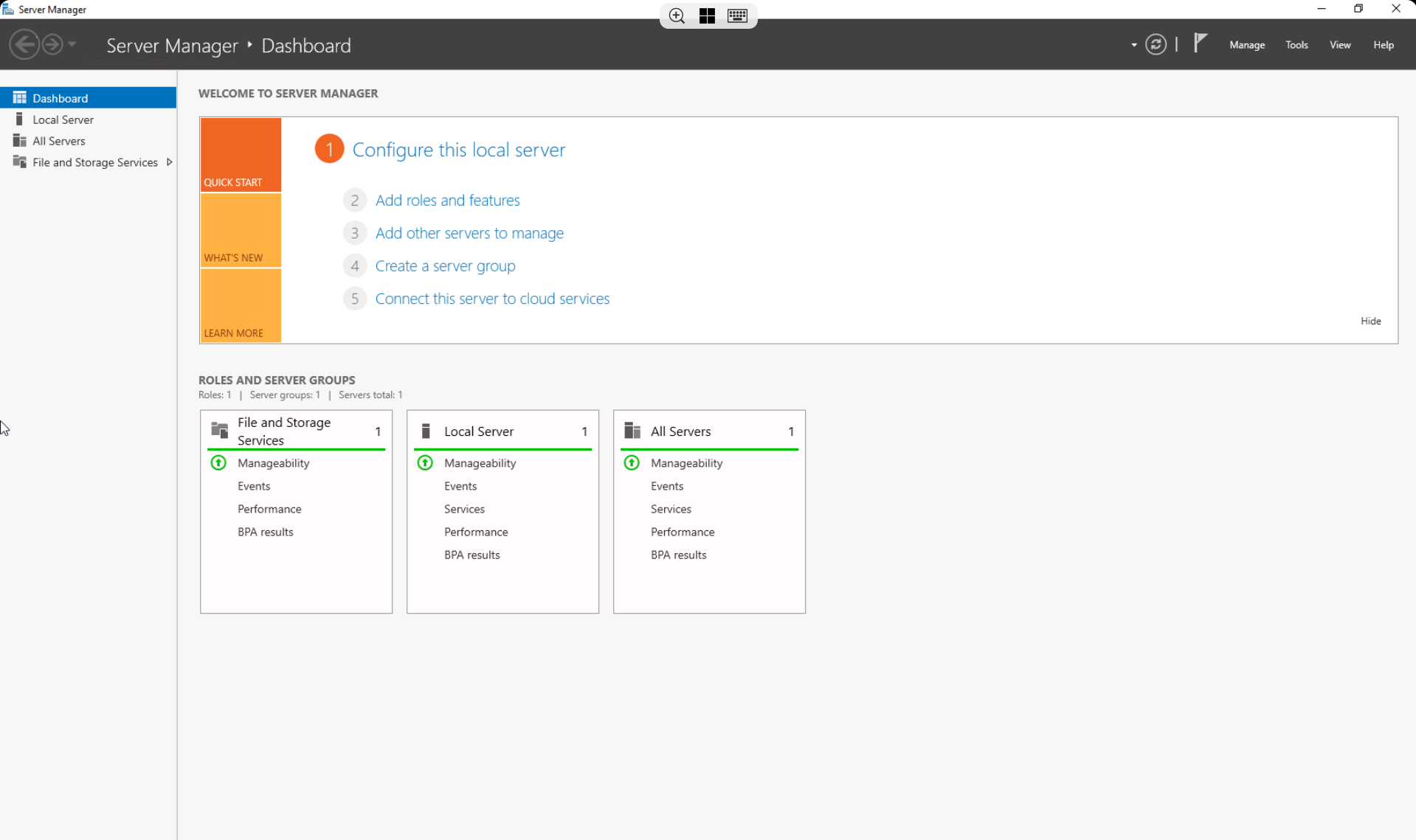
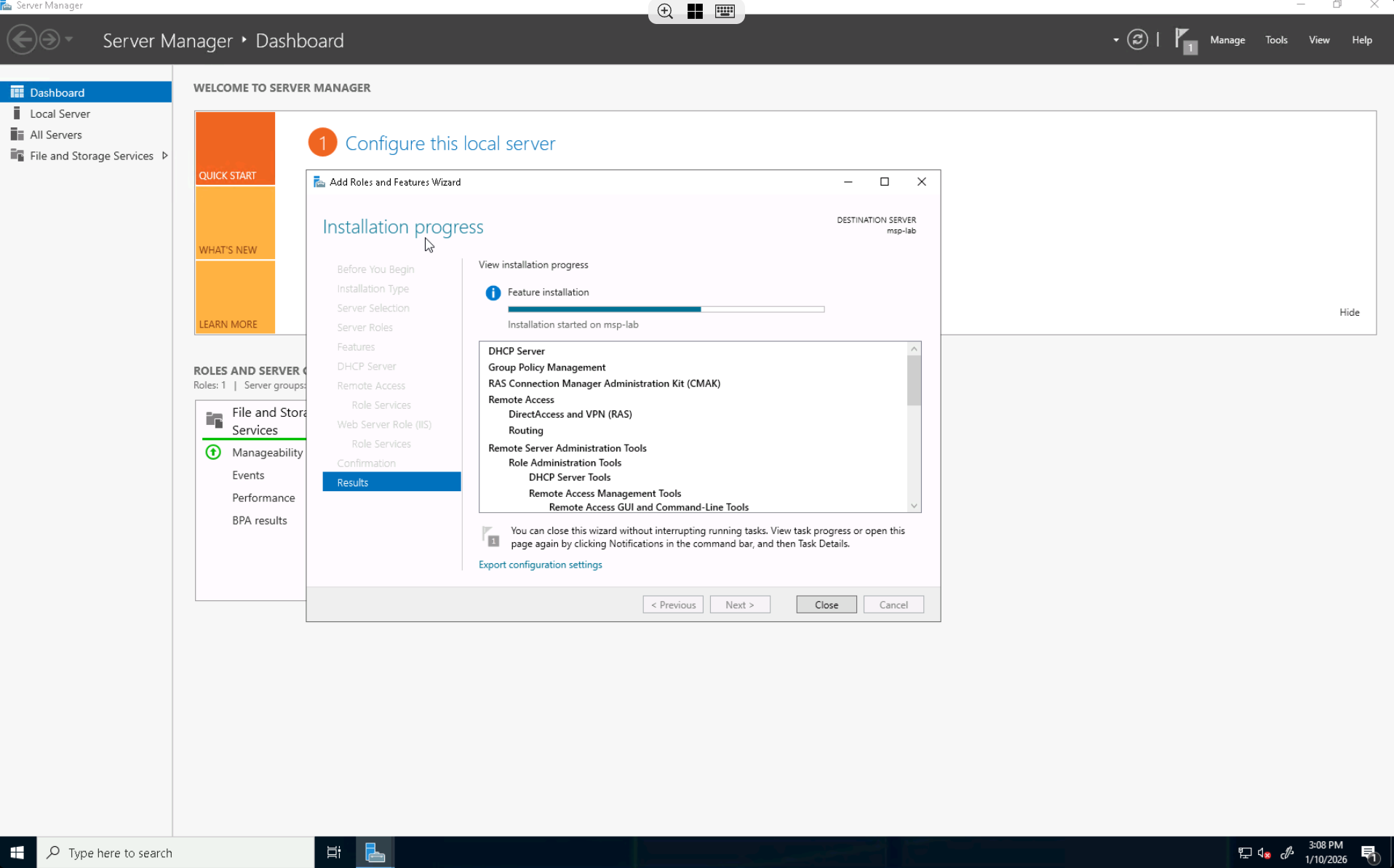
To transform the standard Windows Server into a functional router, I had to install specific server roles. Accessing the Server Manager dashboard, I installed DHCP (to assign IP addresses) and Remote Access (to handle routing and NAT capabilities).
3. Configuring NAT Routing
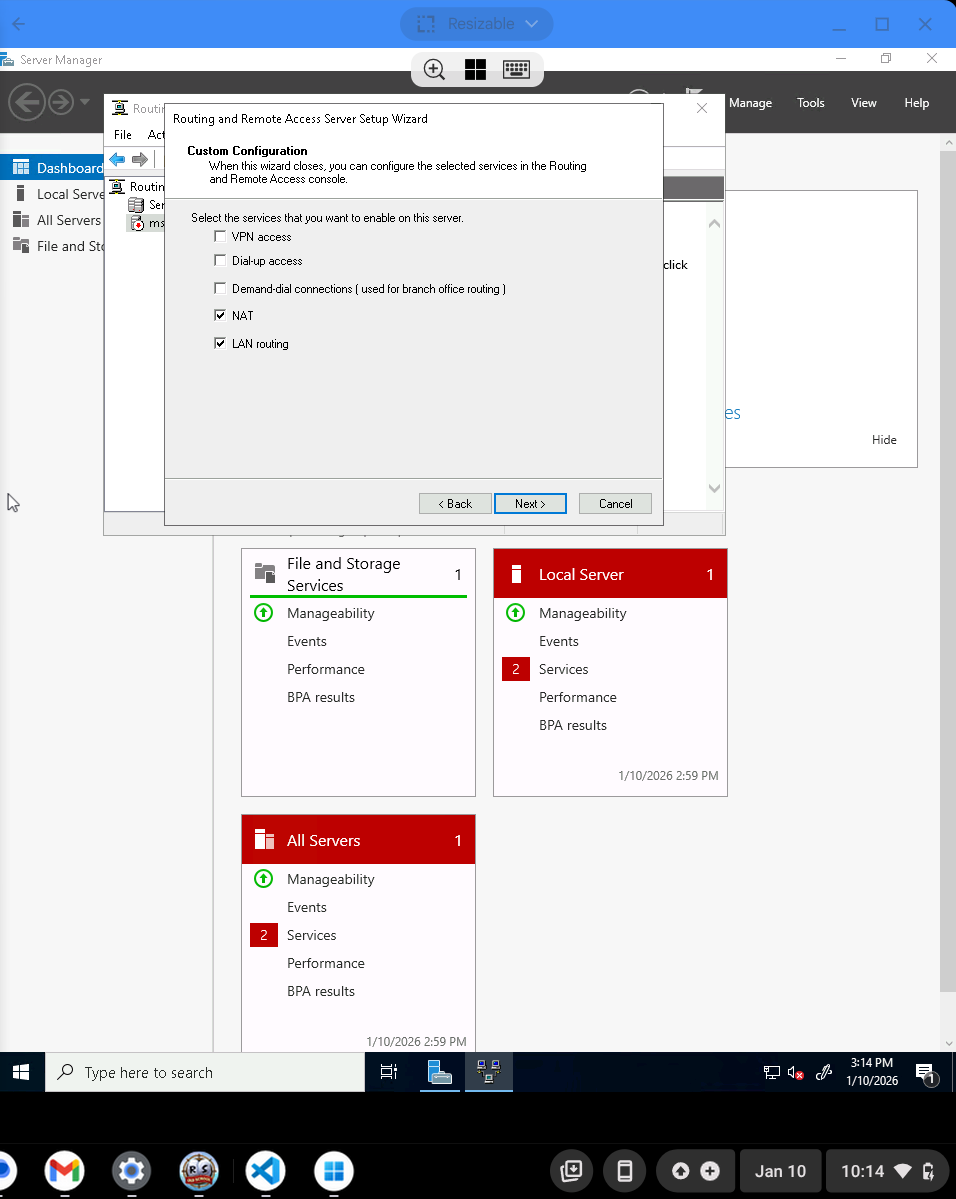
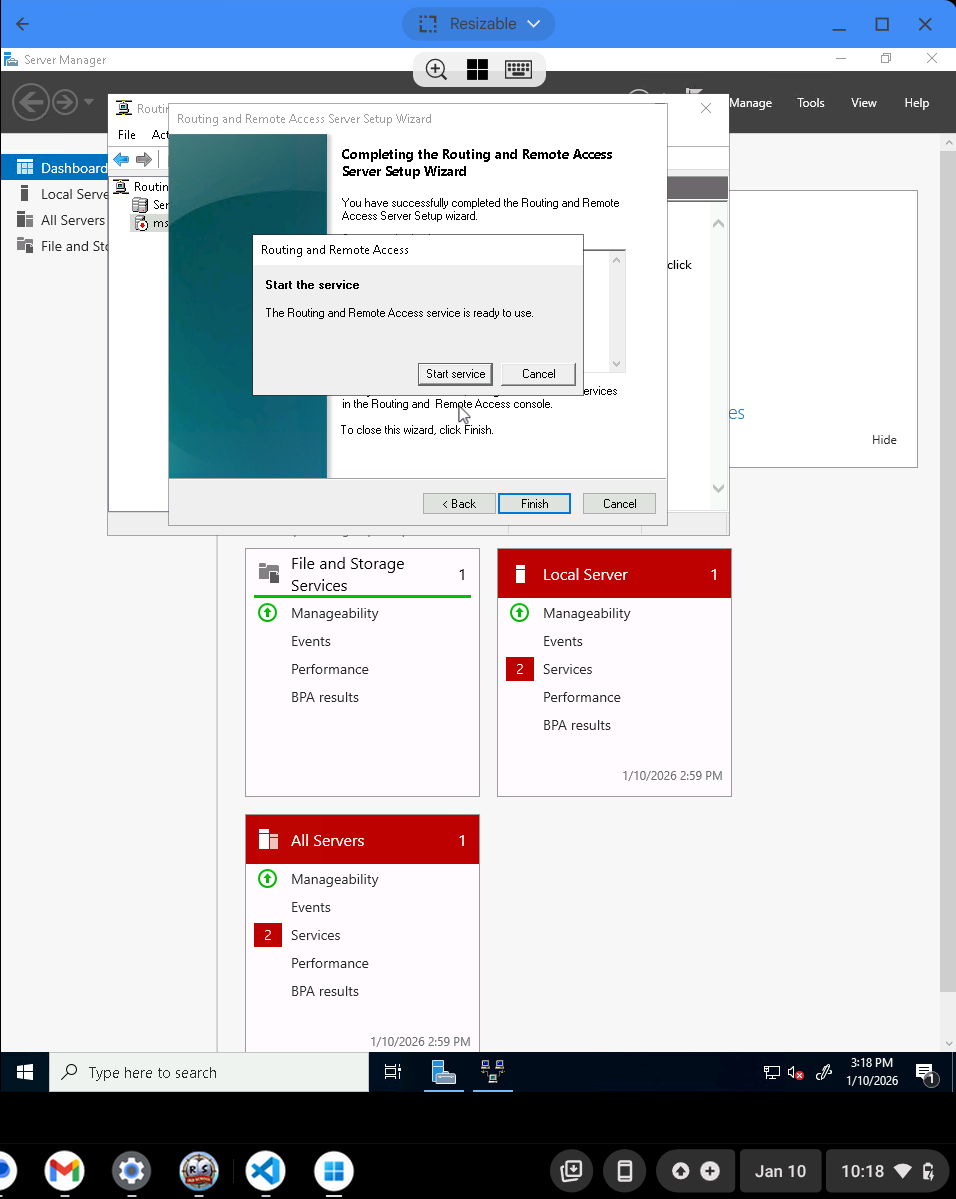
With the software installed, the next step was to initialize the router. I configured the Routing and Remote Access Service (RRAS) to enable Network Address Translation (NAT). This allows the server to take traffic from a private internal network and route it out to the public internet, acting as a gateway.
4. Creating the DHCP Scope
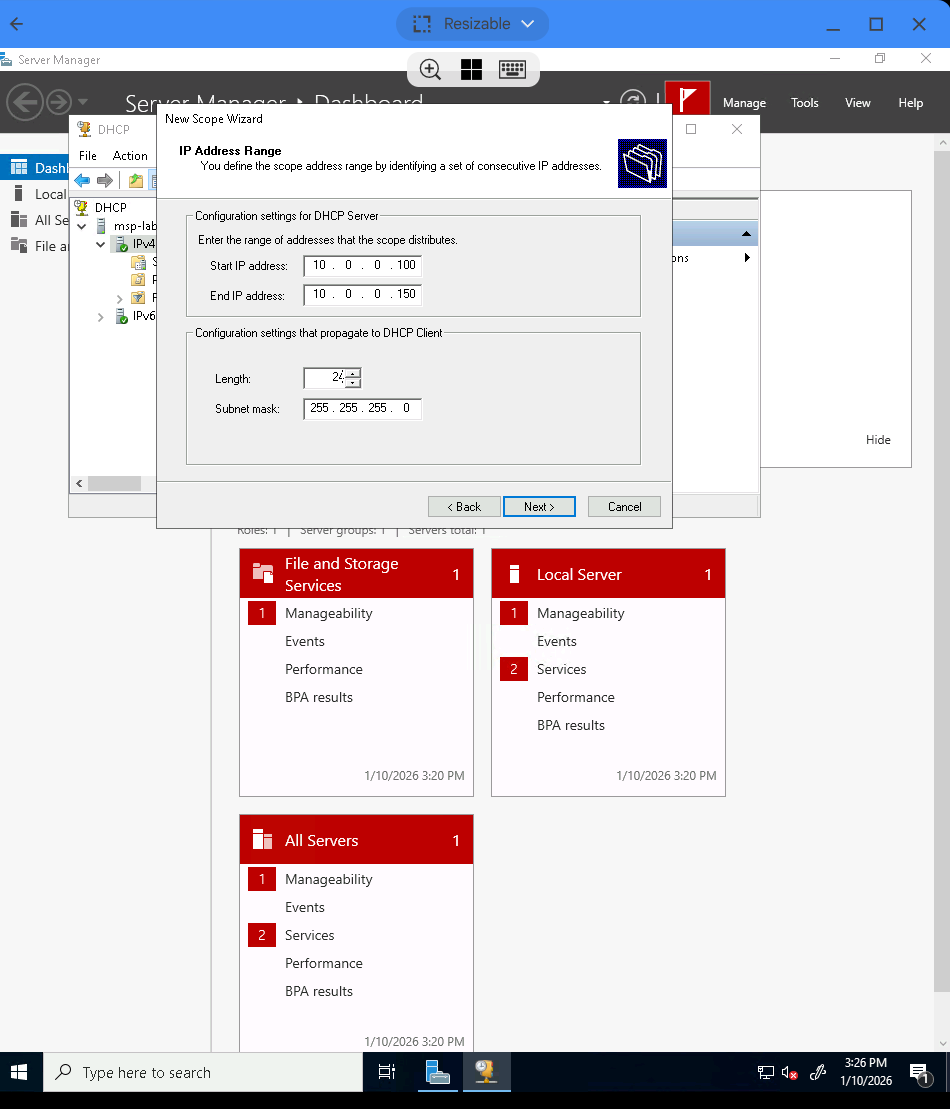
Now that the router is active, I needed to configure the "pool" of IP addresses to hand out to hypothetical customers. I did this by navigating to the IPv4 settings and creating a New Scope. This defines the range of IP addresses (e.g., 10.0.0.100 - 150) that the server is allowed to lease to clients.
5. Validation & Traffic Verification
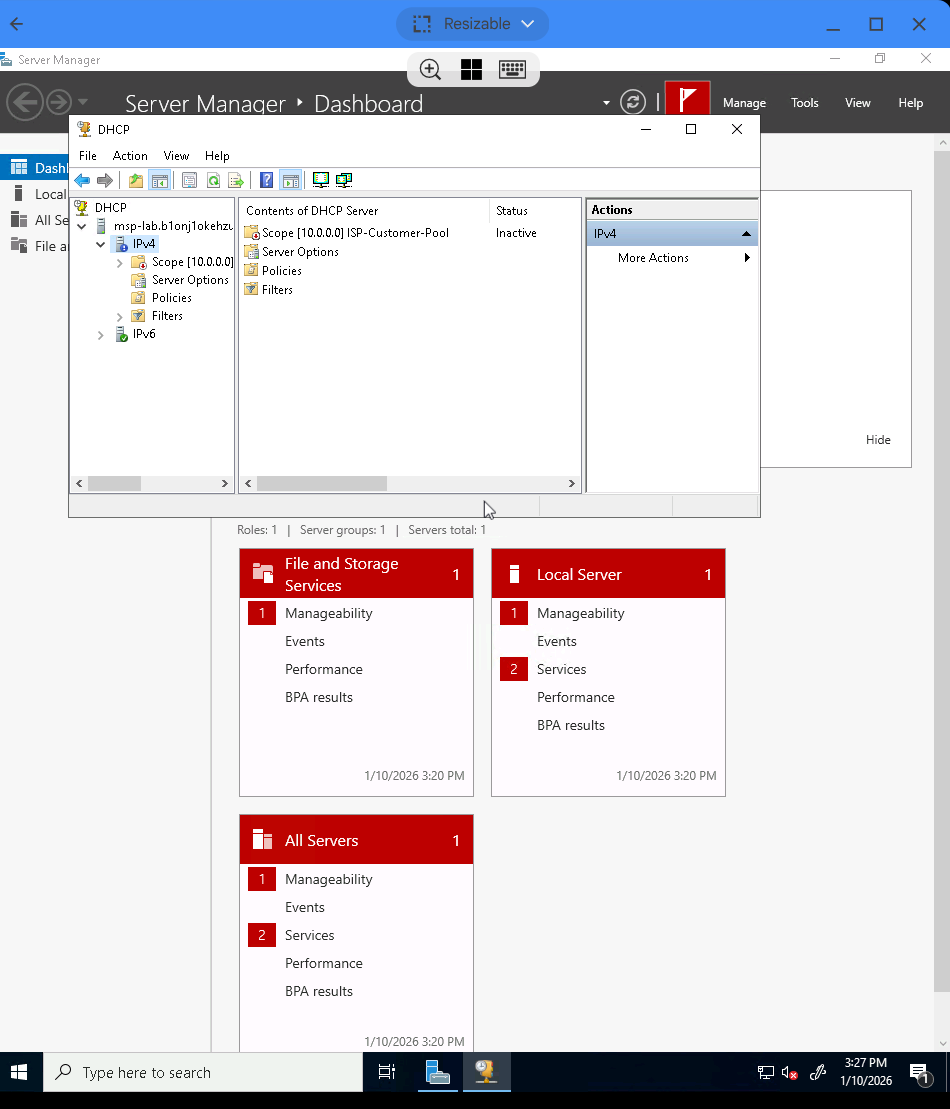
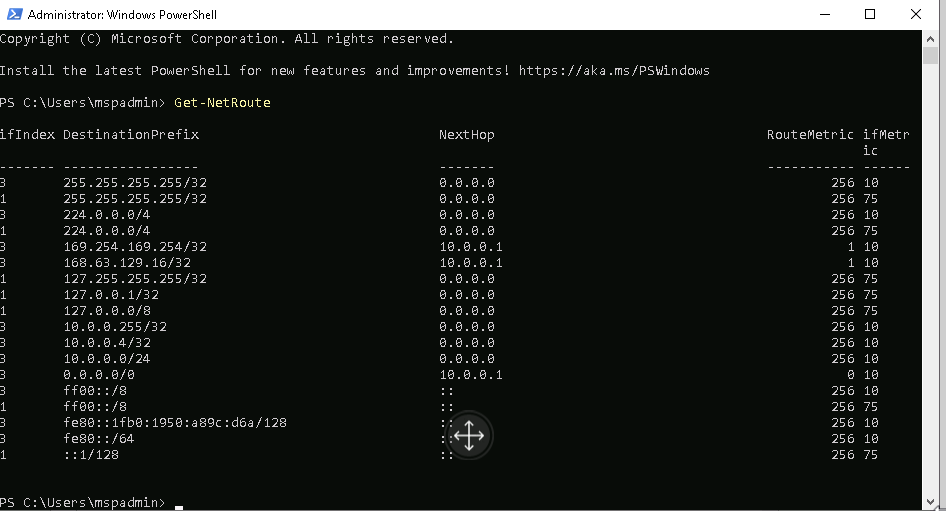
To confirm the infrastructure was fully functional, I used PowerShell commands for validation. Running Get-NetRoute verified that the routing table was actively managing traffic paths, while Get-DhcpServerv4Scope confirmed that the IP pool was active and ready to assign addresses to customers.

Technical Conclusion
This project emulated the deployment of a managed ISP gateway using cloud infrastructure. I successfully provisioned a Windows Server 2022 instance to function as a network edge device, configuring RRAS for Network Address Translation (NAT) and deploying a DHCP scope for client address assignment.
Crucially, this lab required navigating strict cloud regional quotas and troubleshooting service timeouts caused by hardware constraints (1 vCPU/1GB RAM). By manually tuning OS performance and resolving service dependency failures, I demonstrated the ability to optimize and maintain enterprise software on lightweight virtualized infrastructure.